
Google Chat
Google LLCBusiness
4.426.41K Reviews
- Version
- Varies With Device
- Installs
- 50.00M
- Age Rating
- Everyone
Screenshots

Our Review of Google Chat
 Analysis by Appyee
I approached Google Chat as a practical business messaging app rather than another place to collect notifications. Its usefulness depends a lot on who you already communicate with: when a team works in Google Workspace, a conversation can sit close to the documents and meetings it relates to. For a group that mainly uses another service, though, asking everyone to switch may create more friction than the app removes.
Where it fits—and what trust means here
Google Chat is a free business app from Google LLC, released on February 28, 2018. It has a 4.4 average from around 332,000 ratings, and has been installed over 50 million times. Those figures suggest broad use, but they do not tell me whether a particular workplace has set it up well or whether its choices suit my needs. I treat popularity as context, not proof of privacy or reliability.
For me, the sensible starting point is to separate what I can see and control in the app from broader assurances about security. Google describes Chat as part of Workspace, but a security phrase alone is not enough to decide what I should discuss there. I would first check which account I am signed into, who is in the conversation, and whether the space is appropriate for the information I plan to share.
Account habits matter more than assumptions
Signing in with a Google account makes getting started familiar, but it also makes account choice important. Before sending work material, I would confirm that I am using the account my organization expects, rather than a personal one. That small check can prevent an ordinary mix-up, especially on a phone where more than one account may already be active.
I also avoid treating a chat as a private filing cabinet. A message can be easy to forward, quote, or revisit later, so I keep sensitive details out unless the people and the account context are right. For something that needs formal handling, I would follow my organization’s rules instead of guessing that a conversation is suitable simply because it is inside a business app.
Useful choices during everyday conversations
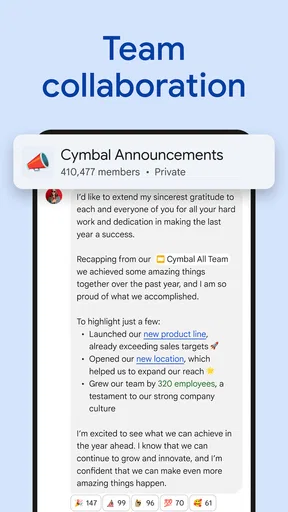
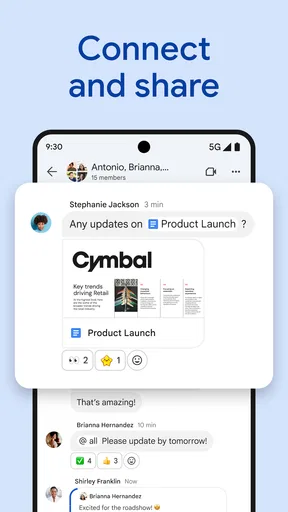
The practical value is clearest when a discussion needs a document or a meeting alongside it. I can use the conversation to keep the decision-making context near the work, rather than scattering it across unrelated messages. A useful habit is to name a space or thread around a specific project or question, then keep follow-ups there; that makes it easier for someone joining later to find the relevant exchange.
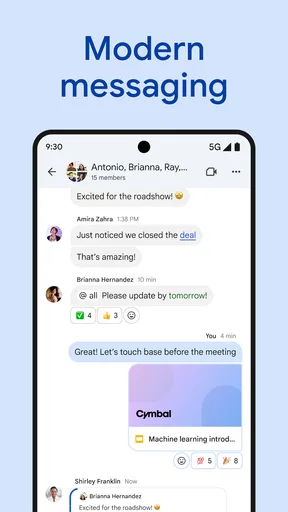
Threads are particularly helpful when a busy group has several topics moving at once. Instead of replying to the newest message with a different question, I can keep a response attached to the subject it belongs to. That does not replace a proper task tracker, but it can reduce the familiar problem of an important answer disappearing under a stream of unrelated chat.
Getting Started with Google Chat
First off, setting up Google Chat is a breeze. If you’ve already got a Google account, you’re pretty much halfway there. Just download the app from the Play Store or App Store, sign in, and you’re good to go. The interface is clean and intuitive, which is always a win in my book. No need to fumble around trying to figure out where everything is. It’s all laid out clearly, making navigation a piece of cake.
Features That Stand Out
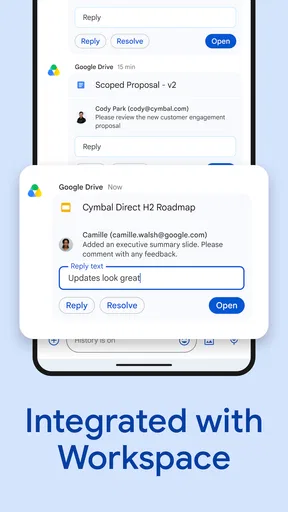
The first thing that caught my eye was the integration with other Google services. You can easily pull in your Google Calendar, Drive, and more, right into your chats. This makes it super convenient for collaborating on projects or just coordinating with friends and family. I mean, who doesn’t love having everything in one place?
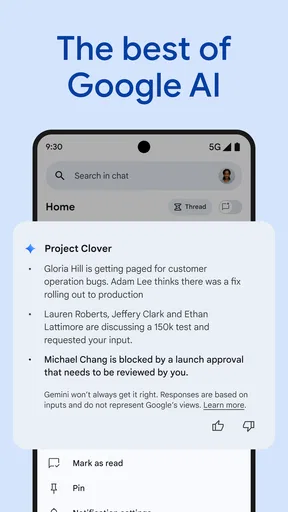
Another feature I found pretty nifty is the smart suggestions. As you type, Google Chat offers quick replies and suggestions. It’s like having a little AI assistant in your pocket, ready to speed up your conversations. Plus, with the ability to create rooms and threads, keeping track of different topics is a cinch.
Security and Privacy
In today’s digital age, security is a top concern, right? Well, Google’s got you covered. With enterprise-grade security features, your messages are safe and sound. Whether you’re discussing top-secret projects or just planning a surprise party, you can rest easy knowing your conversations are protected.
For my own use, I would pair those assurances with careful choices rather than assume every conversation is equally appropriate. I would check the participants before sharing a file or discussing a personal matter, and I would use the account and spaces my team has approved. That is a more useful trust test than relying on a broad security label alone.
Real-Life Use and Experience
Alright, now onto the real-world use. I tested Google Chat with a few friends and colleagues. Setting up a group chat was straightforward, and the notifications are just the right amount of subtle. You know those apps that constantly ping you? Yeah, this isn’t one of them. The notifications are timely but not annoying, which is a big plus for me.
A realistic workday example is a small team arranging a change to a shared document. One person can raise the question in the relevant conversation, others can reply in a thread, and the group can keep the discussion near the file and any meeting coordination. I would still put the final decision somewhere the team treats as authoritative; chat is good for discussion, but a fast-moving exchange is not always the easiest record to scan weeks later.
We even tried out the video call feature, which seamlessly integrates with Google Meet. No hiccups, no dropped calls – just smooth sailing all the way. Whether you’re working remotely or just catching up with friends, the video quality is impressive.
Choosing it over familiar alternatives
Compared with a general-purpose messenger, Chat makes more sense when colleagues already use Google accounts and Workspace tools. In that setting, keeping conversation, shared work, and meeting coordination close together can save context switching. By contrast, if friends or clients already rely on another messaging app, Chat may not be compelling enough to persuade them to install and check one more inbox.
It also is not a substitute for every business tool. A team that needs a carefully structured project board, durable documentation, or a formal approval trail may be better served by a tool designed around those jobs, using chat only for quick discussion. My rule of thumb is to use conversations for questions and coordination, and move lasting decisions into the place where the team expects to find them.
Small habits that make it easier to live with
One useful habit is to pause before replying in a crowded conversation and check whether the message belongs in a thread. It takes a moment, but it can keep a direct answer from becoming detached from the question. Another is to use a clear, narrow topic for a room or group rather than turning one chat into a catch-all; broad spaces are convenient at first and harder to search mentally later.
Smart suggestions can speed up routine replies, but I would read them before sending, especially when a short response could sound abrupt or agree to something I have not checked. They are a prompt, not a substitute for judgment. I would also be deliberate about notification settings on my device: a quieter default may help, but the right balance depends on whether I am on call for a team or only checking messages between tasks.
Who will appreciate it, and who may not
I would recommend trying Chat if your workplace already uses Google Workspace, you regularly discuss shared work, and your collaborators are willing to keep conversations in one place. It is also approachable for someone who wants straightforward messaging rather than a complicated setup. The app is rated Everyone, but that age label is not a reason to share business or personal information carelessly; account context and audience still matter.
I would skip it as a primary messenger if the people I need to reach are not there, if I want a standalone social app, or if my work depends on features better handled by a dedicated project-management or documentation tool. A second inbox is only useful when the group actually checks it. For a solo user, or a team already settled into a different service, switching can add another place to monitor without improving the work.
What to check before sharing
Before sending a sensitive message, I would verify the account shown in the app and scan the participant list, especially in a group with a familiar name. If I am attaching or discussing a file, I would make sure the intended people should have access to it rather than assume that mentioning it in chat settles access. These are simple checks, but they address the everyday risks most likely to come from sending something to the wrong audience.
If the main question is whether a conversation is appropriate for a confidential subject, I would not infer the answer from the app’s business positioning. I would check my organization’s policy and use the approved channel for that kind of material. Likewise, anyone who wants more control over what an account can do should review the account and device choices available to them, rather than assume that every control is managed in the chat screen itself.
Final Thoughts
In the crowded landscape of messaging apps, Google Chat definitely holds its own. It’s especially great if you’re already embedded in the Google ecosystem. The integration with other services like Drive and Meet is seamless, making it a powerhouse for productivity. The clean interface, robust security, and nifty features make it more than just another chat app.
If you’re on the lookout for a messaging app that’s more than just a place to send texts, give Google Chat a whirl. Whether for work or play, it’s got a little something for everyone. And hey, who doesn’t love an app that makes life a bit easier?
My cautious verdict is that it works best as a team’s everyday coordination layer, not as a promise that every conversation belongs there. I like the familiar layout and the way threads can keep a project discussion readable, but I would choose another option when a group will not adopt it or when the work needs stronger structure than messaging provides. Try it with a low-stakes team conversation first, confirm the right account and participants, and see whether it genuinely reduces friction in your day.
Privacy and Permissions
See what permissions an app requests and how it handles your data.
- Identity
- find accounts on the device
- Contacts
- find accounts on the device, read your contacts
- Photos/Media/Files
- read the contents of your USB storage, modify or delete the contents of your USB storage
- Storage
- read the contents of your USB storage, modify or delete the contents of your USB storage
- Camera
- take pictures and videos
- Microphone
- record audio
- Other
- view network connections, measure app storage space, full network access, change your audio settings, run at startup, reorder running apps, control vibration, prevent device from sleeping, read Google service configuration
Verdict
Strengths of Google Chat
- Seamless integration with Google Workspace.
- Supports direct and group messaging.
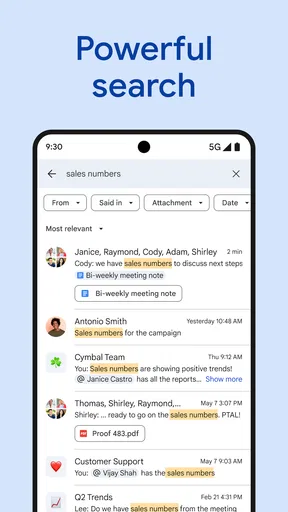
- Offers powerful search capabilities.
- Accessible on multiple platforms.
- Highly customizable notification settings.
Limitations of Google Chat
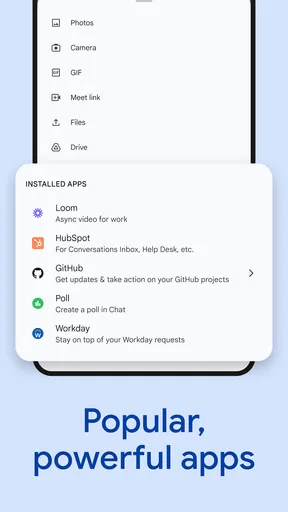
- Limited third-party app integrations.
- Requires Google account to use.
- No end-to-end encryption.
- Basic video call features.
- Can be overwhelming for new users.
Other Releases by Google LLC
View All
Google Calendar
Productivity4.6

Google Messages
Communication4.6

Tools4.0

Google TV
Video Players & Editors3.9
Similar Picks in This Category
View All
LinkedIn: Community & Network
LinkedIn3.8

Zoom Workplace
zoom.com4.1

Microsoft Teams
Microsoft Corporation4.6

Meta Business Suite
Meta Platforms, Inc.4.6

Webex Meetings
Cisco Systems, Inc.4.5

TeamViewer Remote Control
TeamViewer4.4
You May Also Like
View All
Frequently Asked Questions
What is Google Chat and how does it differ from other messaging apps?
Google Chat is a messaging platform designed for teams and businesses to collaborate effectively. Unlike other messaging apps, it integrates seamlessly with Google's suite of productivity tools, such as Google Workspace, allowing users to share documents, schedule meetings, and manage tasks directly within the chat interface. This integration enhances productivity by keeping all communication and resources in one place.
Is Google Chat secure for business communication?
Yes, Google Chat is designed with security in mind, utilizing Google's strong encryption protocols to protect data. It also offers administrative controls for managing user access and permissions, making it suitable for business use. Additionally, it complies with industry security standards, ensuring that sensitive information remains protected during communication.
Can I use Google Chat on multiple devices?
Absolutely. Google Chat is accessible on various devices, including desktops, smartphones, and tablets. Whether you're using the web app or the mobile app, your messages are synced across all platforms. This flexibility allows you to continue your conversations seamlessly, no matter where you are or which device you're using.
Does Google Chat support file sharing and collaboration?
Yes, Google Chat supports file sharing and collaboration. Users can easily share documents, spreadsheets, and other files directly within the chat. It integrates with Google Drive, enabling real-time collaboration on shared files. This feature is particularly useful for teams working on projects, as it allows for efficient communication and resource sharing.
Is Google Chat part of Google Workspace, and do I need an account to use it?
Google Chat is part of Google Workspace, Google's suite of productivity and collaboration tools. To use Google Chat, you need a Google account, which can be a standard free account or a Google Workspace account for businesses. Having an account allows you to access all features and integrate them with other Google services.
